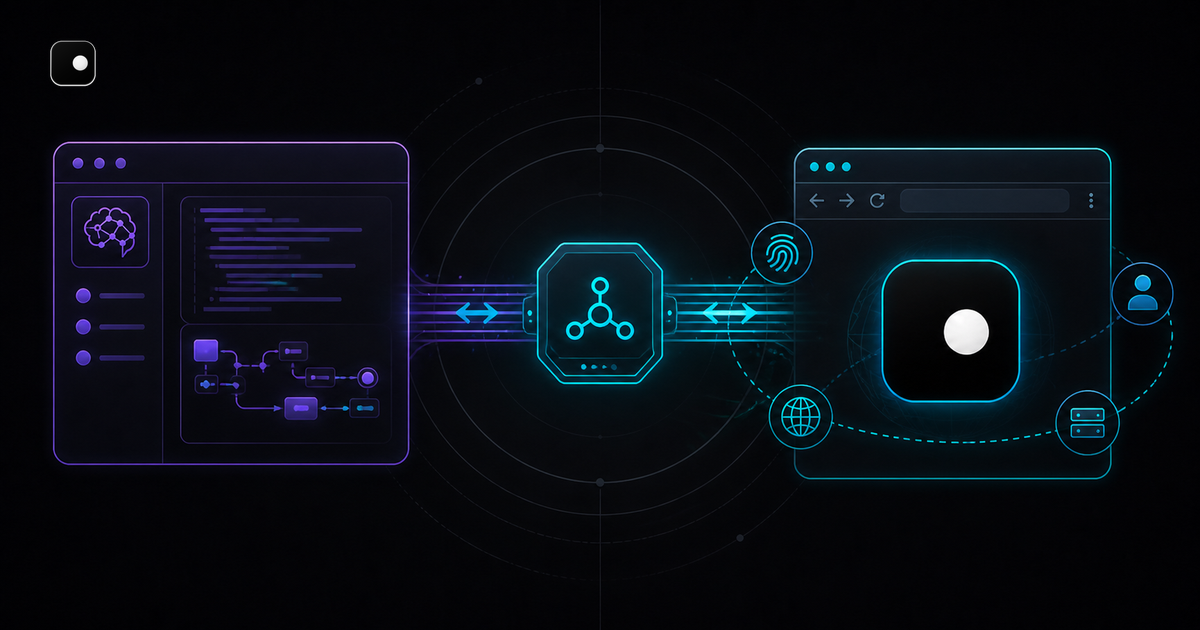
Cursor's built-in browser is a sandboxed webview. It can navigate pages and take screenshots, but it runs inside an isolated MCP extension with no persistent cookies, no real fingerprint and no way to survive anti-bot checks on production websites. When your Cursor agent needs to log in to a platform, scrape data behind Cloudflare or operate a multi-step workflow on a site that checks browser identity, the built-in browser fails.
TL;DR: Connect Cursor to Clawbrowser over CDP (Chrome DevTools Protocol) to give your agent a real Chromium browser with managed fingerprints, persistent sessions and proxy routing. Three commands to install, one line to connect. Your Cursor agent browses real websites without getting blocked.
Why Cursor's Built-In Browser Isn't Enough
Cursor ships a browser tool powered by a sandboxed webview running as an MCP server extension. It provides seven actions: navigate, click, type, scroll, screenshot, console output and network traffic. For inspecting your own app during development, that works.
For anything beyond localhost, it breaks down:
| Limitation | What happens |
|---|---|
| Sandboxed webview | Not a real Chromium instance. Sites detect the automation environment through missing APIs and non-standard window properties. |
| No session persistence | Cookies and localStorage are workspace-scoped and wiped between sessions. Your agent can't reuse a logged-in state across runs. |
| No fingerprint management | The webview has a single, static fingerprint. Anti-bot systems see the same canvas hash, WebGL renderer and navigator properties on every request. |
| No proxy support | All traffic routes through your machine's default IP. Data-center IPs get flagged instantly. |
| Reliability issues | Cursor versions 2.3.18+ introduced regressions where the browser tool fails to click, scroll or find elements. Multiple bug reports remain open on the Cursor forum. |
These aren't edge cases. If your agent touches a site with Cloudflare, DataDome, PerimeterX or any commercial anti-bot system, the built-in browser gets blocked on the first request.
What CDP Gives You
CDP (Chrome DevTools Protocol) is the standard interface for controlling Chromium-based browsers programmatically. Every major agent framework uses it: Playwright calls connectOverCDP, Puppeteer calls puppeteer.connect, and raw CDP clients open a WebSocket to the browser's debugging port.
When you connect Cursor to an external browser over CDP, you get:
- A real browser with a full rendering engine, extensions and standard APIs
- Persistent sessions with cookies and login state that survive across agent runs
- Full page control via the same protocol Playwright and Puppeteer use internally
- Anti-detection when the browser manages its own fingerprint and proxy identity
The connection is a standard WebSocket URL. Any tool that speaks CDP can attach to any browser that exposes a CDP endpoint. Clawbrowser exposes one on every profile.
Connecting Cursor to Clawbrowser: Step by Step
Prerequisites
- macOS (Apple Silicon), Linux (x64 or arm64) or Windows
- Cursor installed
- A Clawbrowser API key from app.clawbrowser.ai
Step 1: Install Clawbrowser
Download and extract the clawctl bootstrapper:
# macOS (Apple Silicon)
archive="clawctl-macos-arm64.tar.gz"
curl -fL --retry 3 -o "$archive" \
  "https://github.com/clawbrowser/clawctl/releases/latest/download/${archive}"
tar -xzf "$archive"For Linux, use clawctl-linux-amd64.tar.gz or clawctl-linux-arm64.tar.gz. No Docker or sudo required.
Set your API key:
./clawctl config set api-keyStep 2: Start a browser profile
Launch Clawbrowser with a named profile. Each profile gets its own fingerprint, cookie storage and optional proxy:
# Start a profile and open the verification page
clawctl start --profile cursor-dev --url clawbrowser://verify/ --json

# Get the CDP endpoint for this profile
clawctl endpoint --profile cursor-dev --json
The endpoint command returns a URL like http://127.0.0.1:9222. This is the CDP endpoint your Cursor agent will connect to.
Step 3: Connect from Cursor via MCP
The simplest integration is through Clawbrowser's built-in MCP server. It exposes browser actions (navigation, screenshots, clicks, tab management, profile startup) as MCP tools that Cursor can call directly. The MCP server handles the CDP connection internally so your agent doesn't need to manage endpoints.
Run the installer to wire the MCP configuration:
clawctl install --agent all --jsonThis writes the local MCP configuration and validates the browser runtime. Cursor picks up the MCP server automatically.
Alternative: Microsoft Playwright MCP
If you prefer to use Microsoft's official Playwright MCP server, point it at the Clawbrowser CDP endpoint in Cursor Settings > MCP > Add Server:
{
  "mcpServers": {
    "playwright": {
      "command": "npx",
"args": [Both approaches give Cursor high-level tool access to the browser. The Clawbrowser MCP server adds profile and fingerprint management tools on top of standard browser actions.
Step 4: Verify the connection
Ask your Cursor agent to navigate to a test page:
Navigate to https://browserleaks.com/canvas and take a screenshot. Tell me what canvas fingerprint hash you see.
If the connection works, you'll see a real canvas fingerprint from Clawbrowser's managed profile instead of the generic hash the built-in webview would produce.
Direct CDP Connection from Code
If your Cursor agent writes and runs scripts rather than using MCP tools, connect directly with Playwright or Puppeteer:
Playwright (Python)
from playwright.async_api import async_playwright

async def browse_with_clawbrowser():
    async with async_playwright() as p:
# Connect to Clawbrowser's CDP endpointPlaywright (Node.js)
const { chromium } = require('playwright');

const browser = await chromium.connectOverCDP('http://127.0.0.1:9222');
const page = browser.contexts()[0].pages()[0];
Puppeteer
const puppeteer = require('puppeteer');

const browser = await puppeteer.connect({
  browserURL: 'http://127.0.0.1:9222'
});All three frameworks connect to the same CDP endpoint. Clawbrowser handles the browser identity layer underneath: canvas, WebGL, AudioContext, fonts, screen resolution, timezone, navigator properties and proxy routing all stay consistent within the profile.
Why Anti-Detection Matters for Cursor Agents
When your Cursor agent browses the web through a standard browser, anti-bot systems check the browser's identity across multiple surfaces:
| Signal | What gets checked | Standard Chrome | Clawbrowser |
|---|---|---|---|
| Canvas hash | GPU rendering fingerprint | Static, matches known automation profiles | Unique per profile, consistent with reported GPU |
| WebGL renderer | Graphics card identifier | Exposes real hardware | Matches the profile's simulated hardware |
| Navigator properties | Browser version, platform, language | Generic Chromium values | Consistent with profile's OS and locale |
| Timezone | System timezone vs IP geo | Mismatches with proxy location | Auto-aligned with proxy geography |
| CDP detection | Runtime.enable traces |
Detectable via leaked CDP artifacts | Engine-level patches suppress CDP signals |
Standard Chromium instances connected via CDP leave traces that anti-bot systems read within seconds. Clawbrowser patches these at the engine level, not through JavaScript overrides that can be detected by checking property descriptors or prototype chains.
This is the difference between connecting Cursor to chrome --remote-debugging-port=9222 (which gets blocked) and connecting to Clawbrowser (which doesn't).
Managing Multiple Profiles
Each Clawbrowser profile is fully isolated. Run multiple profiles simultaneously for different accounts or projects:
# Create three profiles with different locations
clawctl create --profile account-a --location sweden --json
clawctl create --profile account-b --location germany --json
clawctl create --profile account-c --location japan --json
Each profile gets a unique fingerprint, its own proxy IP and isolated storage. Platforms see three independent users on three different machines in three different countries.
Your Cursor agent can switch between profiles by connecting to different CDP endpoints, or manage all three in parallel from a single script.
Cursor's Built-In Browser vs CDP vs Clawbrowser
| Cursor built-in | Chrome via CDP | Clawbrowser via CDP | |
|---|---|---|---|
| Browser engine | Sandboxed webview | Real Chromium | Real Chromium (patched) |
| Session persistence | Workspace-scoped | Manual profile dirs | Named profiles with auto-persistence |
| Fingerprint management | None | None | 20+ surfaces managed per profile |
| Proxy support | None | Manual flag | Profile-bound, geo-aligned |
| Anti-bot survival | Blocked instantly | Blocked within minutes | Passes Cloudflare, DataDome, PerimeterX |
| Multi-account | Not possible | Separate --user-data-dir |
Built-in profile isolation |
| Setup complexity | Zero (built in) | Moderate | Three commands |
Use the built-in browser for inspecting your own app on localhost. Use Clawbrowser via CDP for anything that touches the real web.
FAQ
Does this work with Cursor's agent mode?
Yes. Cursor's agent mode can use any MCP server, including ones that connect to external browsers over CDP. The agent calls the MCP tools exactly like it would use the built-in browser, but the actions execute in Clawbrowser instead of the sandboxed webview.
Do I need Playwright or Puppeteer installed?
Only if your agent writes and runs automation scripts. For MCP-based tool use (the default Cursor workflow), the MCP server handles the CDP connection internally. Your agent calls high-level actions like "navigate" and "click" without needing a separate automation library.
Can I reuse login sessions across Cursor projects?
Yes. Clawbrowser profiles persist cookies, localStorage and IndexedDB. Start a profile, log in manually or with your agent, then reuse that profile in any future session. The login state survives restarts and works across different Cursor workspaces.
What if Cursor's browser tool conflicts with the external browser?
Disable Cursor's built-in browser tool in Settings > Features > Browser if you want to avoid confusion. Otherwise, both can coexist. The built-in browser and the CDP-connected external browser are independent.
Is Clawbrowser free?
Yes. Clawbrowser is free, open source and MIT-licensed. No per-seat fees, no usage limits, no browser runtime subscription. You need an API key from app.clawbrowser.ai to validate your installation.
Get Started
Three commands to connect your Cursor agent to a real browser:
# Install Clawbrowser
clawctl install --json

# Set your API key
clawctl config set api-keyPoint your MCP server or Playwright script at the returned endpoint. Your Cursor agent now browses the web through a browser with managed fingerprints, persistent sessions and proxy routing.
For more on CDP browser automation, see CDP Browser for AI Agents: A Developer Guide. For the full fingerprint management story, see Browser Fingerprinting Explained: The 20+ Signals Anti-Bot Systems Check.
Continue exploring
Ask AI how Clawbrowser helps
Keep reading
Related articles
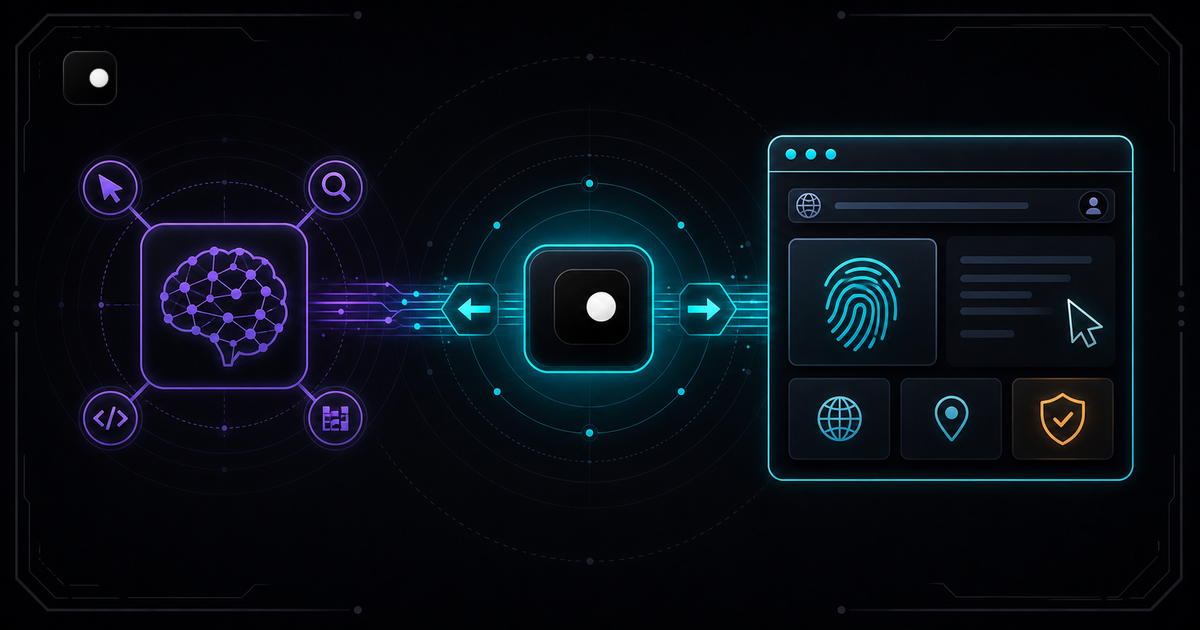
How to Build an AI Agent That Browses the Web (Python + CDP)
Step-by-step tutorial: connect an LLM to a browser with managed fingerprints using Playwright and CDP. Includes tool definitions, agent loop and scaling to parallel agents.
Read article →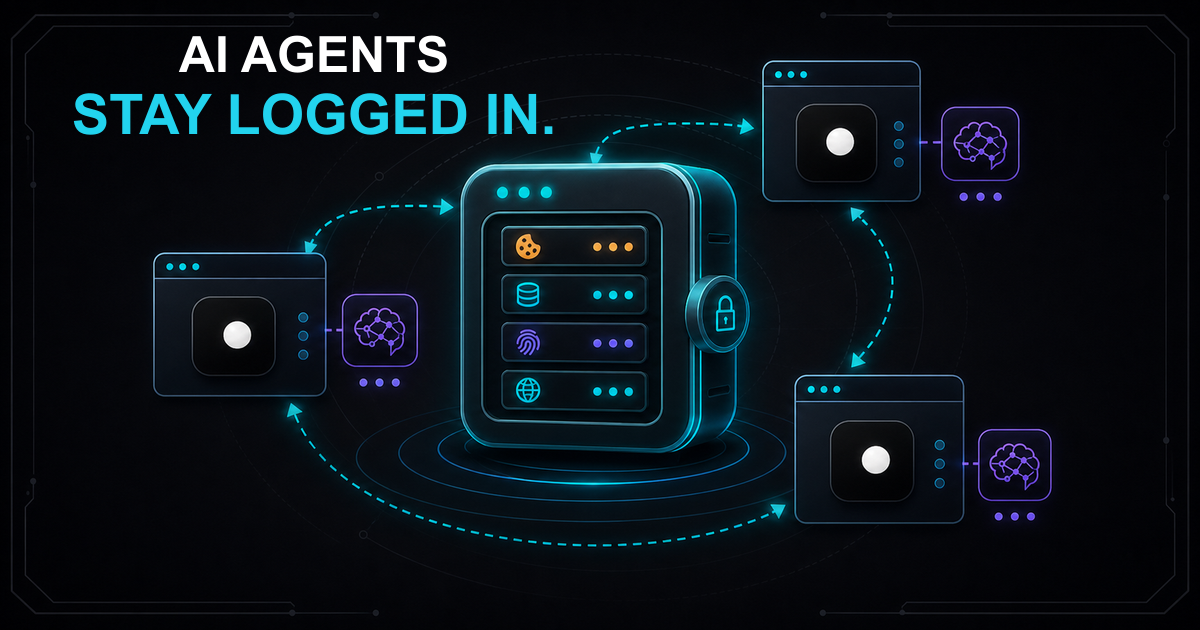
Session Persistence for AI Browser Agents: Why Your Agent Keeps Losing State
AI browser agents lose session state between runs because standard tools don't persist cookies and fingerprints together. Here's how to fix it with named browser profiles.
Read article →